
Need to update job information, assign a new foreman, or fix an address? MEPHUB makes it easy to edit your jobs.
✅ Step 1: Navigate to the Job Detail Page #
- From the Jobsites page, click on the Job Number or Job Name you want to edit.
- On the Job Detail Page, click the “Edit” button at the top.
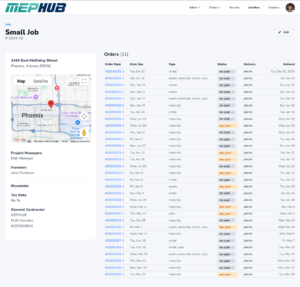
✅ Step 2: Edit Job Information #
You’ll land on the Edit Job screen where you can update:
- Job Name
- Project Manager or Foreman
- Jobsite Address
- Delivery Instructions
- General Contractor Info
- Contact Details
- Bluestake Number
- Tax Rate
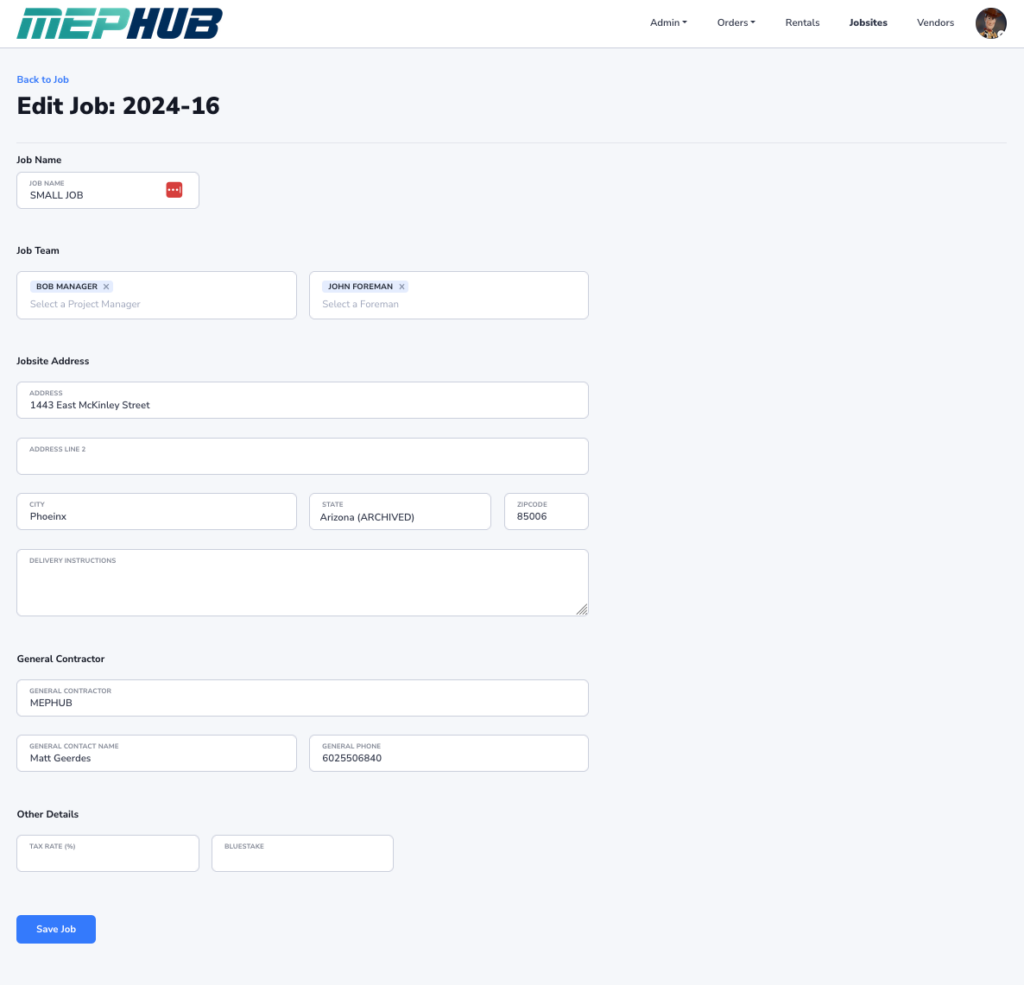
💡 Tip: Click into any field to update the info as needed. Use dropdowns to assign or change team members.
✅ Step 3: Save Your Changes #
Once your updates are complete, click the “Save Job” button at the bottom.
✅ The job is now updated and ready for your team to work from!
💡 Pro Tips: #
- Keep team assignments up to date so the right people get notified.
- Double-check the address for accurate material deliveries.
- Updating the general contractor or contact info helps keep communication smooth.
📥 Need Help? #
If you’re unable to edit certain fields or run into issues, reach out to your Org Admin or contact MEPHUB Support.